
To allow us temporary Remote access please make sure you meet the Minimum Requirements and install one of the Remote Access Software Options below.
- Option 1 – AnyDesk Install (preferred)
- Option 2 – TeamViewer Install
- Option 3 – RustDesk Install
Once installed please Text Message the Access Code to (587) 402-7431 to allow us to initiate a connection request for you to aprove so we can carry out the remote session configuration. For programming or flashing sessions please send photo of charger/connections as well as this is critical for a successful outcome. We will configure any additionally required software remotely and communicate along the way.
Step 0 – Confirm Minimum and Power Setup Requirements (below)
Step 1 – Install Remote Access Software (above)
Step 2 – Text Message us your Access Code
Step 3 – Accept our connection request
Minimum Requirements:
- Appropriate Diagnostic Cable or Interface
- DCAN, ENET, ICOM, J2534, etc (see image below for cable options)
- Windows 10/11 Laptop (Wall Charger Recommended)
- Must have full administrative rights (no work or restricted laptops)
- You only need to install RustDesk
- Fast and Stable WiFi connection at the Vehicle
- Must have low ping/latency for successful programming
- If requested, run the Internet Speed Test Tool below
- Battery Voltage Maintainer for Flashing (optional for Diagnostics)
- Min 40 amp setting to maintain 13 Volts with the ignition on.
- Alternatively, a second vehicle running with Booster Cables can be used.
- For diagnostic sessions a Voltage Maintainer is only required if engine does not start.

Power Setup Requirements:
BMW programming or flashing sessions require a HIGH CURRENT power source.
A normal 10A or 20A battery charger is NOT sufficient for BMW flashing/programming sessions.
During programming, vehicle voltage must stay ABOVE 13V with ignition ON. Low amp chargers cannot maintain this and may cause programming failure or module corruption.
APPROVED OPTIONS:
✅ 40A+ charger/power supply
✅ High amperage batty maintainer
✅ Second running vehicle connected with booster cables
NOT APPROVED:
❌ 10A charger
❌ 15A charger
❌ 20A charger
❌ trickle charger / low amperage battery maintainer
If you are unsure whether your setup is acceptable, send us a photo of your charger BEFORE the appointment.
Internet Speed Test for Flashing / Tune Sessions
Test your Internet speed using tool below or by visiting openspeedtest.com Noting mainly the ping value followed by the upload/download speed. Unstable internet increases the risk risk of flash failure.
Option 1 – Install AnyDesk
Step 1 – Click Here to Download AnyDesk

Step 2 – Open the downloaded file and click the Install Tile.

Step 3 – Open AnyDesk and let us know your Address Number

Step 4 – Accept our connection request by clicking the Green Accept button

Option 2 – Install TeamViewer
Step 1 – Click Here to Download TeamViewer

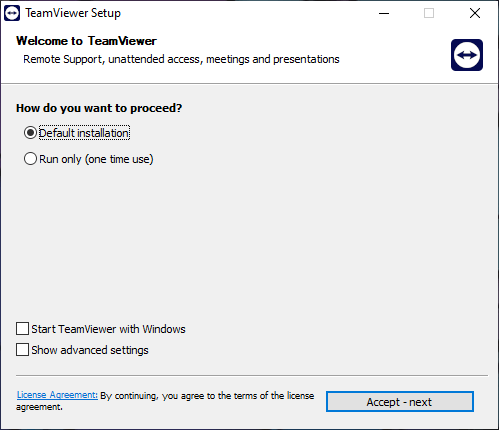
Step 2 – Open the Downloaded file and install TeamViewer using the Default options.
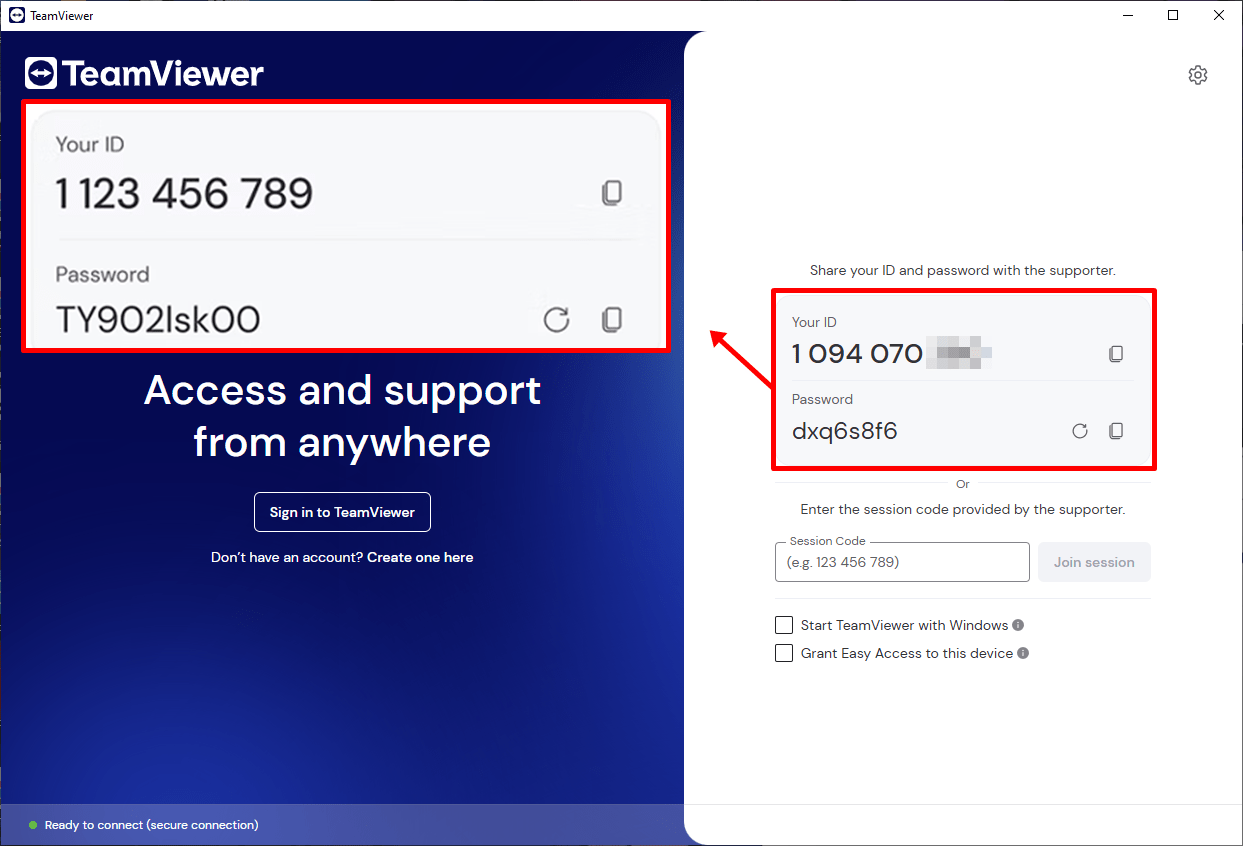
Step 3 – Open TeamViewer and inform us of your ID and one-time Password
Option 3 – Install RustDesk
Step 1 – Click here to Download RustDesk
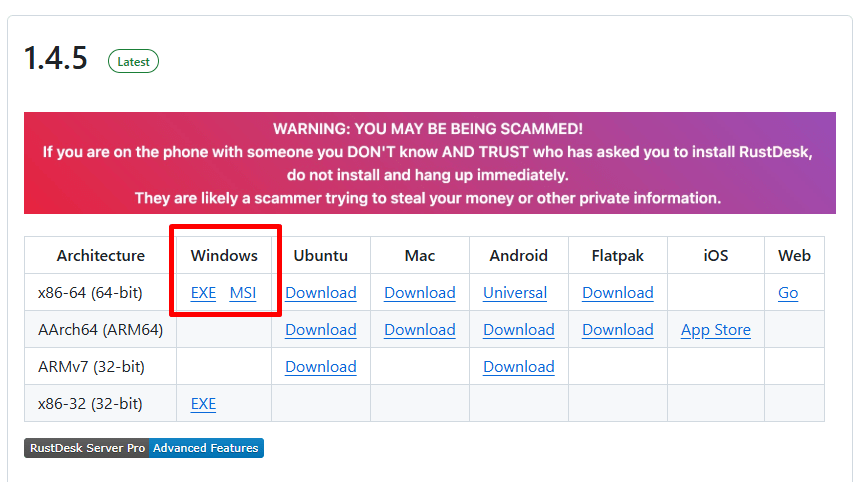
Step 2 – Open the Downloaded to Launch RustDesk and press the Install Button.

Step 3 – Open RustDesk and let us know your ID and one-time Password
